
How to Migrate from Picasa to Live Gallery (Step-by-Step)
Moving on from Picasa? Here's exactly how to transfer your photo library to Live Gallery, including what happens to your old face tags and albums.
7/15/20264 min read
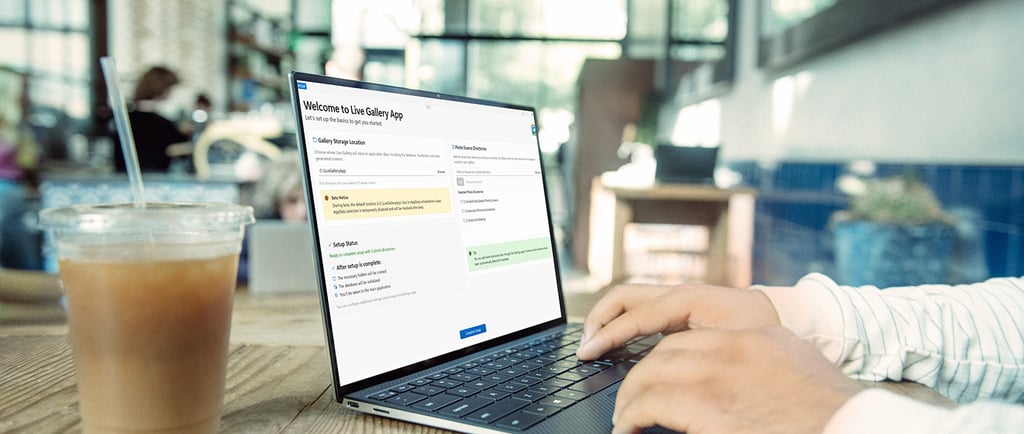
If you've still got Picasa installed, or you're running it through compatibility mode on a machine it was never designed for, moving to something new can feel like a bigger job than it actually is. Here's exactly what moving your photos over looks like, step by step.
The short version
You don't need to export anything. You don't need to convert files. You don't need to rebuild your folder structure from scratch. Live Gallery reads your photos directly from wherever they already live on your drive, so the migration is mostly just pointing it in the right direction.
Here's the full walkthrough.
Step 1: Find out where Picasa actually stored your photos
Picasa didn't move your photos into its own storage system, it catalogued whatever was already on your hard drive. That's actually the part that makes this migration simple. Your original photo files are still sitting exactly where they were before you ever opened Picasa, in your Pictures folder, on an external drive, or wherever you originally saved them.
If you're not sure where that is, open Picasa (if you can still get it running) and check the folder list on the left-hand side. Those are your source folders, and that's what you'll point Live Gallery at.
Step 2: Don't worry about Picasa's albums
This is the part that trips people up. Picasa's albums weren't real folders, they were a virtual grouping layered on top of your actual files. That means albums don't "transfer" in the traditional sense, because they were never a physical thing to begin with.
What does transfer is any information Picasa wrote back into your photo files themselves, specifically face tags and star ratings in some cases. Anything stored purely inside Picasa's own database (like custom album groupings that don't correspond to folders) won't carry over automatically, because that data was never written to the files, it lived in Picasa's internal system.
If you have Picasa albums that matter to you and they're not folder-based, it's worth noting down which photos belonged to which album before you move on, just so you can recreate the grouping manually if needed.
Step 3: Install Live Gallery and point it at your photos
Download and install Live Gallery. When you first open it, you'll be asked to select a folder. Choose the same folder (or folders) that Picasa was scanning.
Live Gallery will index everything, building a catalogue of your entire library. Depending on how many photos you have, this can take a little time on the first run, but it only has to happen once.
Step 4: Check your face tags
If you spent time tagging faces in Picasa, there's a good chance some of that data is recoverable. Picasa wrote face tag information into a hidden file structure alongside your photos in many cases, so depending on how your library was set up, you may see faces already partially recognised when Live Gallery finishes its first scan.
This isn't guaranteed for every setup, Picasa's tagging system varied depending on version and configuration, but it's worth checking before you start re-tagging everyone from scratch.
Step 5: Let Live Gallery's face recognition take over
Whatever Picasa didn't carry over, Live Gallery's own face recognition can pick up from here. It runs entirely locally, the same way Picasa's did, so there's no cloud processing and no upload involved. Give it a pass through your library and it'll group faces automatically, ready for you to label.
Step 6: Rebuild any album groupings you actually use
If you had Picasa albums that weren't tied to folders and you noted them down in step 2, this is where you recreate them. Live Gallery supports tagging photos so you can group them logically without physically moving files around, the same non-destructive principle Picasa used, just modernised.
What you don't need to do
You don't need to uninstall Picasa first. You don't need to convert file formats. You don't need to move or copy your photos anywhere. Live Gallery works directly with the files as they already sit on your drive, non-destructively, so there's no risk to your original library during the process.
If something doesn't look right
If photos are missing after your first scan, double-check you pointed Live Gallery at every folder Picasa was scanning; it's common to have photos spread across more than one location (an external drive plus your main Pictures folder, for example).
If face recognition doesn't pick up your old Picasa tags, that's expected in some setups, not every version of Picasa wrote face data in a format that carries over. Live Gallery's own recognition will still handle it going forward.
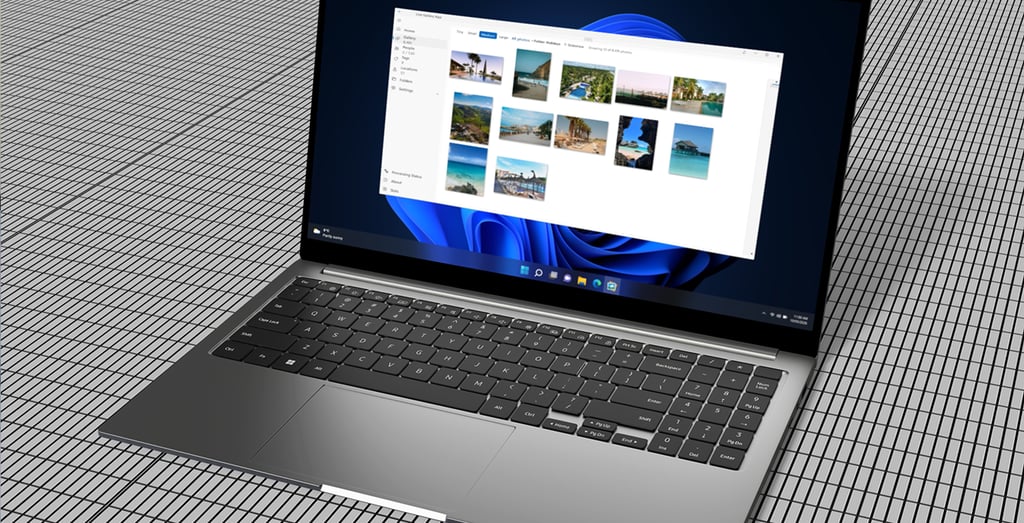
Ready to move over?
Picasa hasn't been updated since 2016, and running it on modern hardware is increasingly a losing battle. Live Gallery was built specifically so people leaving Picasa wouldn't lose the years of work they put into organising their libraries.
Live Gallery is currently in free public beta, capped at 5,000 images while performance is refined ahead of full release.
Organise your photos with
ease and privacy.
© 2026 Live Gallery App. All rights reserved.


Menu
Useful Links